Last Updated: July 9, 2026
📌 Overview
To sync your Shopify products with Hue, we need read and write access to your product data. This article walks you through creating a custom app in your Shopify Dev Dashboard and sharing the resulting credentials with our team.
💡 When Might You Want to Use This?
- You're setting up Hue for the first time and need to connect your Shopify store's product catalog.
- You're reconnecting or re-authorizing product sync after rotating your app credentials.
⚠️ Important to Know
This token gives Hue read and write permissions for your products. We only use write access to add AEO-optimized video content to your product's metafields — we do not modify pricing, inventory, descriptions, or any other product data.
🪜 Quick Reference (Text Steps)
- Go to Settings → Apps → Develop apps.
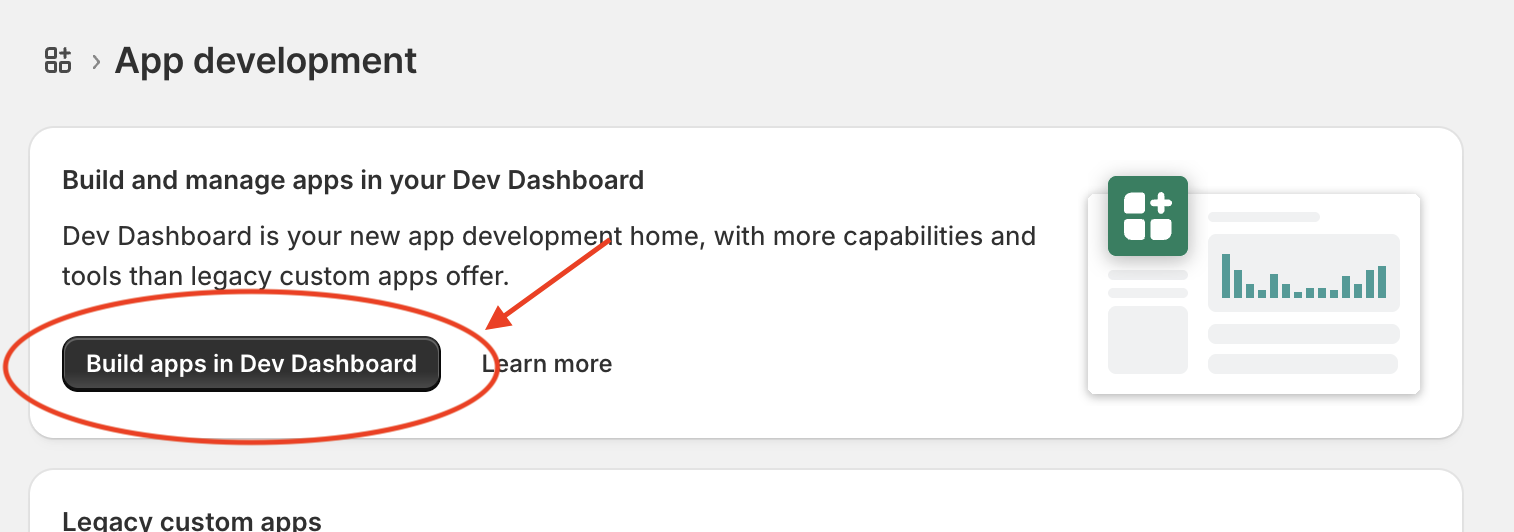
- Click Build apps in Dev Dashboard.
- Click Create app. Name it "Product Sync Integration", then click Create.
- After the app is created, scroll down to Access and click Select scopes.
- From the Admin API dropdown, enable the following scopes:
- Admin API, Product Information →
read_product_listings - Admin API, Products →
write_products - Admin API, Products →
read_products
- Admin API, Product Information →
- Click Done, then click Release. (Version name and message are optional.) Click Release again to confirm.
- Once installed, click Settings in the left-hand panel.
- Under Credentials → Secret, click the eye icon 👁 to reveal it.
- Copy both the Client ID and Secret, and share them with the Hue team.
- Go to Home, click Install App, select your storefront, and click Install on the Shopify admin page that opens.
- That's it — you're all set!
🖼️ Visual Guide
Step 1–2: Open the Dev Dashboard
Go to Settings → Apps → Develop apps, then click Build apps in Dev Dashboard.
Step 3: Create the App
Click Create app, name it "Product Sync Integration," and click Create.
Step 4–5: Select API Scopes
Scroll to Access and click Select scopes. From the Admin API dropdown, enable read_product_listings, read_products, and write_products.
Step 6: Release the App
Click Done, then Release. Version name and message are optional — click Release again to confirm.
Step 7–9: Copy Your Credentials
Click Settings in the left-hand panel, then reveal and copy both the Client ID and Secret under Credentials. Share both with the Hue team.
Step 10: Install the App
Go to Home, click Install App, select your storefront, and confirm by clicking Install.
🛠️ Troubleshooting
I don't see "Develop apps" under Settings → Apps
- This option is typically limited to store owners and staff with full admin permissions. Confirm your account has the right access level.
I can't find the scopes I need in the dropdown
- Make sure you've selected Admin API from the dropdown at the top of the Select Scopes modal — scopes are grouped by API type.
The Client ID or Secret isn't visible
- Click the eye icon 👁 next to the Secret field to reveal it. The Client ID should already be visible in plain text.
I already installed the app but need new credentials
- Go to Settings → Credentials and click Rotate to generate a new Secret, then share the updated credentials with Hue.